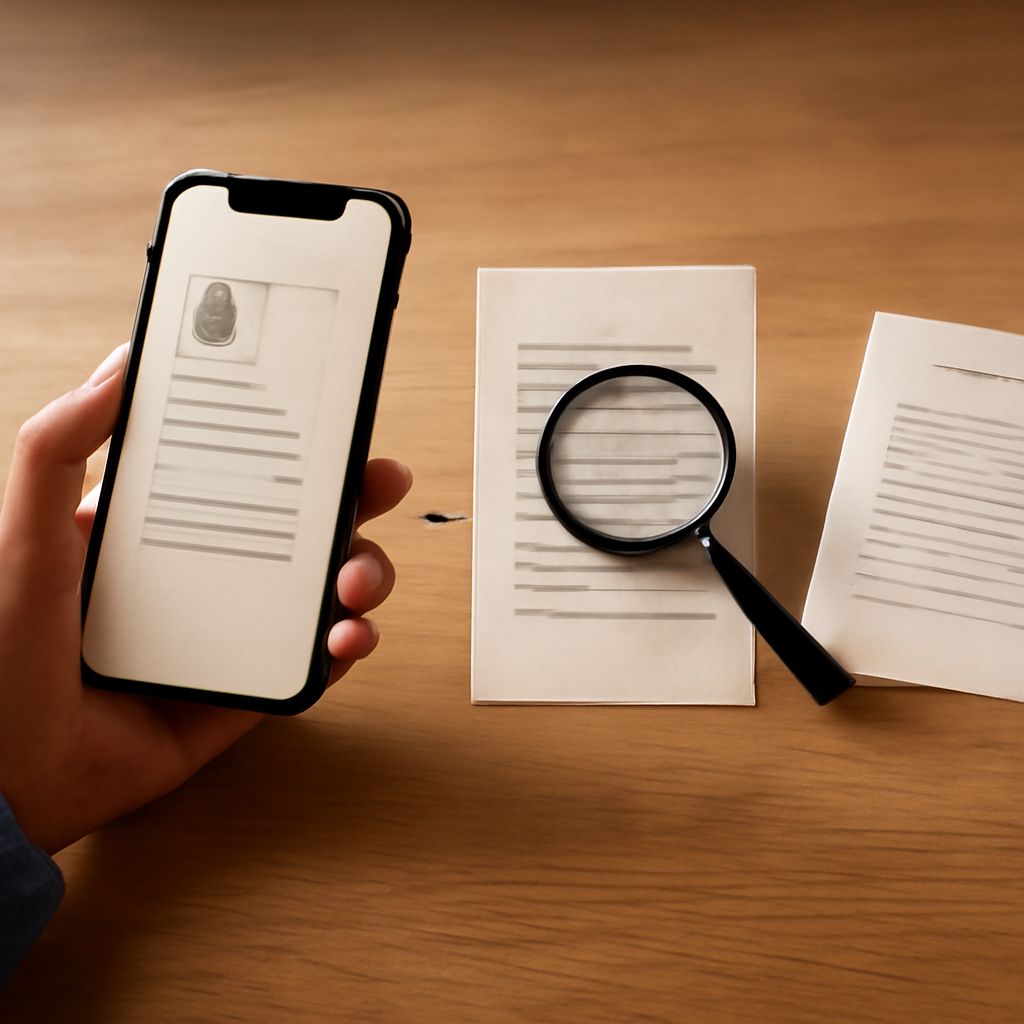
Extracting text from images has become an essential task in many professional and personal settings. Whether you’re dealing with scanned documents, screenshots, or photos, converting these images into editable text can save time and improve productivity. This guide explores efficient methods to extract text from images, particularly focusing on tools that convert image formats like PNG to text.
Understanding Text Extraction
Text extraction involves converting written information in an image into a digital text format. This process is often referred to as image to text conversion or using a text extractor. It leverages Optical Character Recognition (OCR) technology, which scans the image to identify and convert characters into machine-encoded text. This is especially useful for digitizing documents, editing text from photos, or extracting data from PDFs.
Popular Tools for Image to Text Conversion
Several tools can seamlessly convert image files into text. Adobe Acrobat is a widely used option, known for its robust OCR capabilities. Another popular tool is Google Drive, which offers a free OCR service when you upload an image file. For more specialized tasks, ABBYY FineReader provides advanced features suitable for professional environments. Each of these tools can handle various image formats, including converting PNG to text efficiently.
Step-by-Step Guide to Extracting Text
Here’s a simple guide to extract text from an image using Google Drive:
- Upload the Image: Log in to your Google Drive account and drag the image file into your Drive.
- Open with Google Docs: Once uploaded, right-click the image file, select “Open with,” and choose “Google Docs.” Google will automatically run its OCR engine to extract text from the image.
- Edit and Save: The extracted text will appear in a new Google Docs file, where you can edit and save it as needed. This process works effectively with formats like PNG, making it a versatile option for text extraction.
Tips for Accurate Text Extraction
To ensure accurate text extraction, start with a high-quality image. Clear and well-lit images produce better results, as OCR tools rely on image clarity to distinguish characters. If possible, use images with simple backgrounds and high contrast between text and background.
Another tip is to pre-process the image by adjusting its brightness and contrast settings. This can enhance the legibility of the text, making it easier for OCR tools to recognize and extract it accurately.
Lastly, consider using specialized OCR software for complex images or heavily stylized text. These tools often include features that can improve text accuracy through advanced image processing techniques.