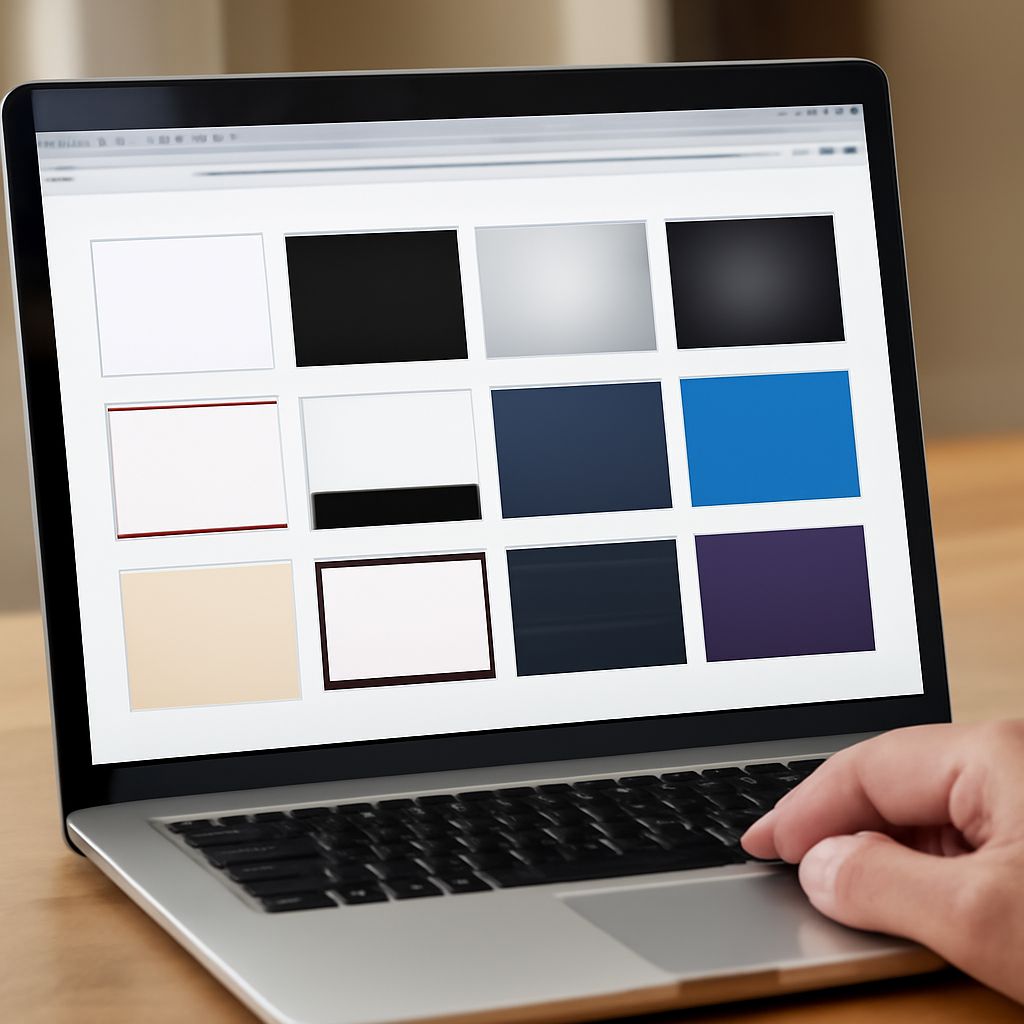
A presentation with the right content can still look like a patchwork of mismatched slides. To bring it together, import a theme into Google Slides from a compatible presentation, then choose layouts that fit your content.
You can start with a Google Slides theme you can download or a presentation already in your Drive. The source supplies the design; your existing slides supply the material you want to present.
Downloadable Google Slides Themes: Choose a Source
A theme is a preset group of colors, fonts, backgrounds, and layouts. A template can also contain sample slides and placeholder content. Look for a source whose title, text, and image layouts suit your presentation, rather than choosing by the cover slide alone.
Google Slides themes to import are available within presentation files. You can use another Google Slides presentation or a PowerPoint presentation as the source, according to Google’s instructions. For example, a colleague may share a company deck, or a template provider may offer a PowerPoint file for download.
When you download Google Slides themes from a third party, read the license for your intended use and any attribution requirements. Downloadable Google Slides themes vary in format, so preview the sample slides. If a provider gives you a Google Slides link, open it and make a copy to your Drive when prompted or permitted; if it supplies a PowerPoint file, keep the file available on your computer or upload it to Drive.
A downloadable Google Slides theme may look polished in a preview because the creator placed graphics directly on individual slides. Those objects are slide content, so importing the theme alone may not bring them over. For Google Slides themes you can download, open the source and examine a few layouts to see how much of the design belongs to the theme.
Import the Theme
Work on a computer for these steps. Make a copy of your destination presentation first if you want an easy way back to its current appearance. Then follow Google’s theme import process:
- Open the presentation you want to update in Google Slides.
- Choose Slide > Change theme.
- At the bottom of the theme panel, click Import theme.
- Select and open the source presentation. Choose it from Drive, or upload the compatible presentation file when offered.
- Select the theme in the preview and click Import theme.
Google Slides themes to import can include several layouts under one design. With themes imported into Google Slides, select a slide, click Layout on the toolbar, and choose the arrangement you need. A title slide, a section divider, and a text-and-image slide can each use a different layout while sharing the same visual system.
Theme or Slide Content?
Importing a Google Slides theme changes the design available to your presentation; it does not copy the source’s individual slides and their text, images, or charts. If you need a particular sample slide, use File > Import slides instead. Select the source and the slides you want. Google says you can choose whether to keep the original theme or have imported slides fit the destination presentation’s look.
That distinction helps when you download a theme for Google Slides with an illustrated timeline: import the theme for its colors and layouts, and import the timeline slide separately if you want its editable objects too. Replace any sample text and confirm you have permission to use the graphics.
If the File Won’t Work
If you can’t import themes into Google Slides from the file you received, first look for a Google Slides or PowerPoint version from the same provider. An image, PDF, or archive isn’t itself a presentation to select as the theme source. Extract an archive first if it contains a compatible deck.
If no compatible presentation is available, use an image from the package as a background if its license allows it, then import a design theme into Google Slides or choose a built-in one for editable text. A background image gives you the visual backdrop, but it won’t create the source’s editable layouts.
For a final Google Slides theme import check, select a title slide and a content slide. Use Layout on each and confirm the expected arrangement, colors, and fonts appear; adjust any text or images that need more room.