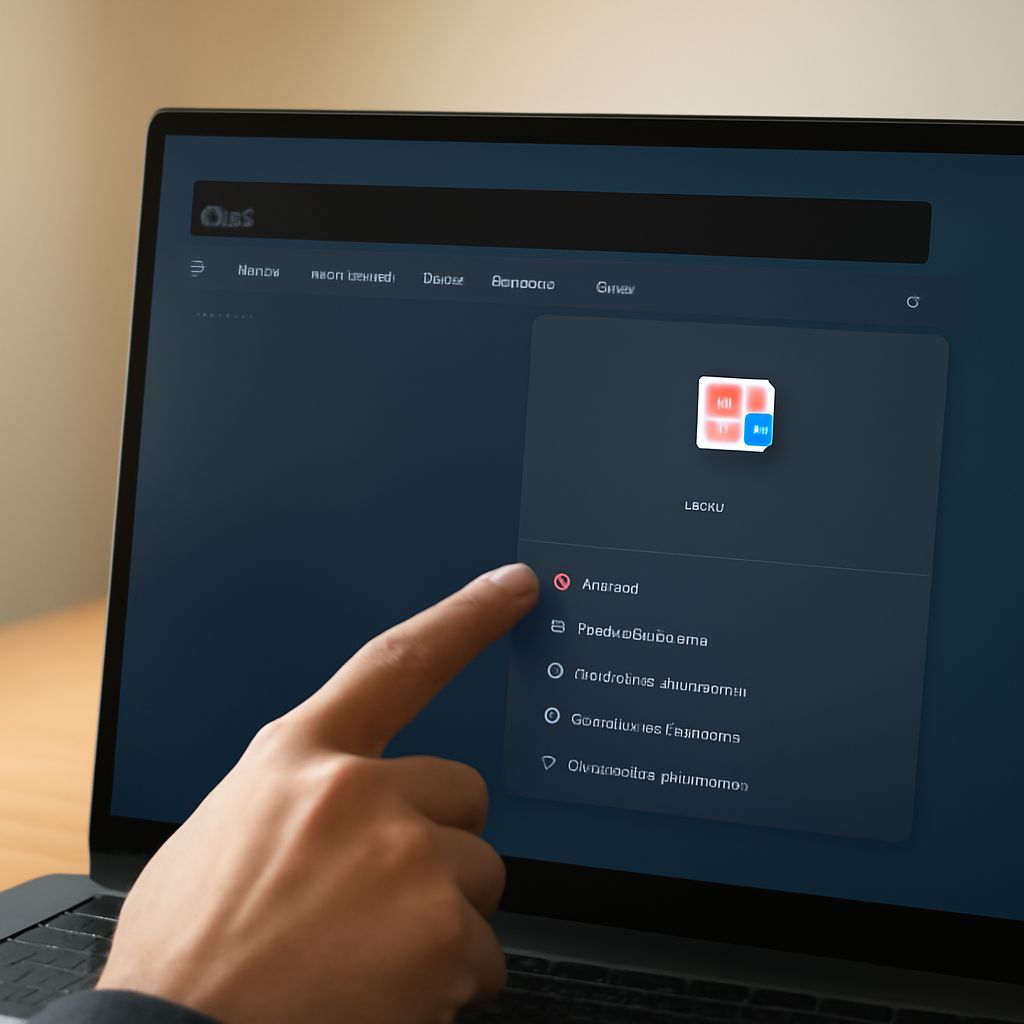
A screenshot cannot show the sequence of clicks that caused an error. To capture your computer screen as a video, use the recording controls built into Windows or macOS, then play the result before sharing it. You can record a computer’s screen with a selected area or the whole display and add your voice when needed.
Before making a screen recording on your computer, imagine showing a colleague how to change a document’s margins. Open the document first, close unrelated windows, and silence notifications. Decide whether your colleague needs to see just the document window or your entire desktop as you move between apps.
How to Record a Computer Screen on Windows
On Windows 11, Snipping Tool can record a selected rectangular area. Microsoft’s instructions provide the recording shortcut:
- Press Windows + Shift + R, or open Snipping Tool, select Record, and choose New.
- Drag around the area you want to capture. To show one window, draw around it; to capture the desktop, select the full screen area. Everything visible inside that rectangle can appear in the video.
- Check the microphone and system audio controls on the recording bar. Turn on the sources you need and select your microphone if the option is available. Turn off sources you do not want recorded.
- Click Start, perform a few seconds of the task, and click Stop. Play the preview and listen for your voice or the computer’s sound.
- Save the clip using the save control and choose a folder and filename you can find again. If your version saves recordings automatically, check its save location in Snipping Tool settings as well.
Once the test sounds right, record the computer screen again for the complete demonstration. Knowing how to screen record on a computer includes checking what lies inside the capture rectangle: move a window outside it and that portion will not appear. If a menu or notification covers the document, viewers will see that too.
Record on a Mac
On a Mac, press Shift + Command + 5 to open the Screenshot toolbar. You can record the entire screen or a selected portion; on macOS versions that offer window recording, you can choose a window as well. The icons on the toolbar show the available choices.
- Select Record Entire Screen, Record Selected Portion, or the window option if available. Adjust the selection around the area to show.
- Open Options. Under Microphone, select the device for narration or choose None. Under Save to, choose the desktop or another folder.
- On macOS 27 or later, select Include System Audio in Options if you need the Mac’s sound. Earlier versions do not provide that same built-in option in this toolbar. Apple’s guide describes the available controls.
- Click Record; for a selected window, click the window when prompted. Demonstrate a few seconds, then click the stop button in the menu bar or press Command + Control + Esc.
- Open the file from the chosen save location and play it. By default, the recording saves to the desktop after the thumbnail disappears.
To learn how to record a computer screen reliably, use a short sample to check the right area and audio. If it does, start another recording of the computer screen for the full margins walkthrough. If your narration is faint, select the correct microphone and move closer before trying again.
Check the finished file
A final step in how to screen record on a computer is to watch the saved clip from start to finish before sending it. Make sure the text is readable, the cursor shows the relevant clicks, and the file contains no private information. Rename your screen recording from the computer clearly so the recipient knows which version to open.
If you want to record video playing on a computer, first test a brief section: protected video may appear black or refuse capture. Use a source you have permission to record. If a normal desktop recording is silent, revisit the microphone or system-audio selection, record another short sample, and listen to that saved file before repeating the full task.