Open your laptop’s touchpad settings and look for a three-finger tap or another gesture you can assign to a middle click. On a Chromebook, you can try tapping a link with three fingers. The steps for a middle click on a laptop depend on its operating system, touchpad, and driver.
A middle click often opens a browser link in a new tab. It can also close a tab when you click the tab itself, so use an ordinary link for your first test. Some creative or technical apps assign their own actions when you middle-click on the laptop, such as panning a canvas.
Set up a gesture in Windows
On a supported Windows 11 touchpad, you can choose an action for a three-finger tap. Here is how to middle click on a laptop when the option is available:
- Open Settings > Bluetooth & devices > Touchpad.
- Expand Three-finger gestures and look at the Taps menu. Select Middle mouse button if it is offered.
- If you do not see it there, look under Advanced gestures for a tap assignment and check the available actions.
- Move the pointer over a browser link and tap the touchpad with three fingers together. Look for a new tab.
This laptop touchpad gesture sends a middle click in apps that support it. The new assignment replaces whatever that gesture did before. If it opened Search or notifications, you will need another way to reach those features. Microsoft’s gesture guide explains where to customize supported gestures.
Not every touchpad exposes the same controls. If Windows does not offer a middle-click gesture on your laptop, check the manufacturer’s touchpad software or support page for your exact model. Some drivers have their own gesture settings; others do not provide that assignment. Do not assume that tapping the physical center of the pad triggers the middle button.
Try a Chromebook touchpad
For a Chromebook, how to middle click on a laptop can be as simple as pointing at a link and tapping or clicking the touchpad with three fingers. Google’s Chromebook guide lists this gesture for opening a link in a new tab. To middle-click using the Chromebook laptop’s touchpad, keep your fingers together and lift them without swiping.
Test the laptop’s three-finger middle-click action on a link in a page. If it opens a new tab, you have a quick way to keep your current page open. Be careful over the tab bar: the same gesture on a tab closes it. You can restore an accidentally closed tab with Ctrl + Shift + T.
Use a mouse or an app shortcut
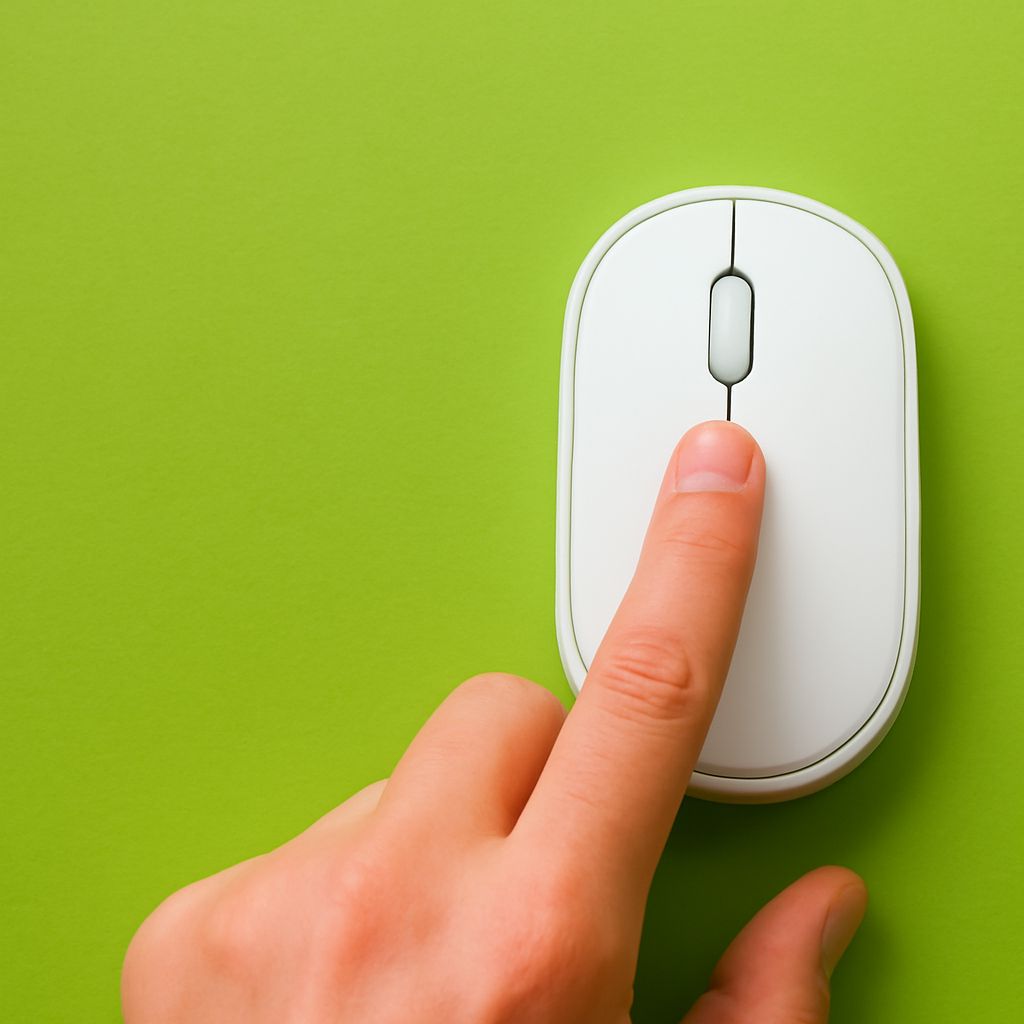
An external USB or Bluetooth mouse with a clickable scroll wheel offers another answer to how to middle click on a laptop. Connect or pair the mouse, point at a link, and press the wheel straight down. Rolling it scrolls; pressing it performs the middle click. Some mice have a separate middle button instead, letting you perform a middle click on the notebook without a touchpad gesture.
On a MacBook, check System Settings > Trackpad for available gestures. macOS does not normally offer a built-in middle-click assignment there. An external mouse with a clickable wheel is a straightforward way to middle-click on a Mac laptop. Some third-party utilities can map a gesture, but review their permissions and compatibility before installing one.
For a browser link alone, holding Ctrl while clicking on Windows or Chromebook, or Command while clicking on a Mac, can open the link in a new tab. This shortcut helps with browsing, although it may not replace the middle button in another app.
Check the result
The best test of how to middle click on a laptop is the action you need: try a normal web link and watch for a new tab. If a three-finger tap opens Search or switches windows instead, revisit the gesture assignment. If no middle-button option appears or the touchpad cannot detect the gesture, use a wheel-equipped mouse or the browser shortcut for links.