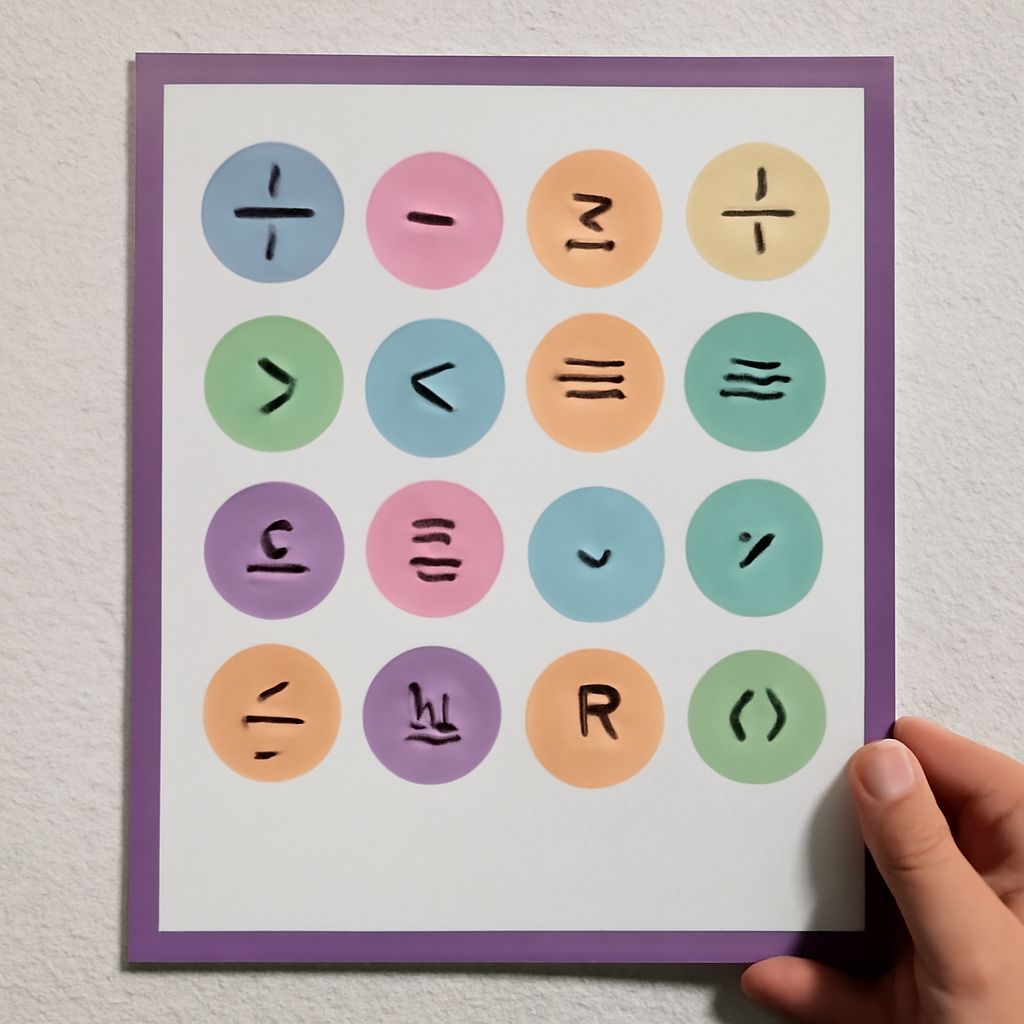
For a single sign such as ≤, copy a math symbol and paste it directly into your text. For a stacked fraction, matrix, or expression with several levels, use an equation editor to keep the parts aligned. Copied mathematical symbols work well in ordinary sentences, labels, and simple formulas.
Math symbols copy and paste: Choose a character
Select the character you need from the lists below, copy it, and paste it into your document. On Windows, use Ctrl+C and Ctrl+V; on a Mac, use Command+C and Command+V. On a phone, touch and hold to select the character, then use the copy and paste commands.
Arithmetic and comparison
- + plus; − minus; × multiplication; ÷ division.
- = equals; ≠ not equal; ≈ approximately equal.
- <** less than; **> greater than; ≤ less than or equal to; ≥ greater than or equal to.
- ± plus or minus; % percent.
For example, write “temperature change: ±2 °F” or “score ≥ 80.” For math symbols, copy and paste can save time when your keyboard has no dedicated key. The characters stay as editable text in most document fields, so you can move or delete them like other letters.
Sets, logic, and calculus
- ∈ belongs to a set; ∉ does not belong to a set.
- ⊂ is a proper subset of; ∪ union; ∩ intersection; ∅ empty set.
- ∞ infinity; ∑ summation; ∫ integral; √ square root.
- ∂ partial derivative; Δ uppercase Greek delta; π lowercase Greek pi.
You can copy math characters from the list and paste them into a short expression like “x ∈ A.” For a summation with limits above and below the sign, open the equation editor instead. It gives you structured slots for the limits and keeps them attached to the operator when you edit.
Watch for lookalikes
The minus sign − is longer than the hyphen –. Use the minus sign in a mathematical expression and the hyphen in a word such as “well-known.” The multiplication sign × is different from the lowercase letter x; use × for an operation and x when it represents a variable.
Similarly, ≤ is one character, while < followed by = is two. The single sign is easier to read in finished prose. For code, follow the programming language’s syntax: a language may require <= even though the document displays ≤. Copying and pasting a math character into code can look right while producing an error.
When to use an equation editor
The math symbols copy paste workflow takes seconds: select a sign, copy it, and paste it into your text. A plain symbol does not automatically format the rest of an equation. For example, typing “1/2” gives you a linear fraction; an equation editor can place 1 above 2 with a fraction bar between them. It can also build roots over longer expressions and arrange subscripts and superscripts. These equation symbols stay together as you revise the surrounding formula.
In Microsoft Word, choose Insert > Equation. In Google Docs, choose Insert > Equation. Use the editor’s controls to build the expression, then fill in its placeholders. For a one-line note, copy and paste math symbols directly into the surrounding text; for a complex formula, build the expression as an equation.
If a math sign you copy and paste appears as an empty box, try a different font that supports it. If the destination changes its appearance, paste as plain text or select a suitable font after pasting. Check the result in the final document, especially when sharing it with someone using another app.
Choose the sign by meaning, then compare it with any similar-looking character. Copy and paste math signs into ordinary text for simple notation; use an equation editor for structured math equation symbols and expressions that need alignment.