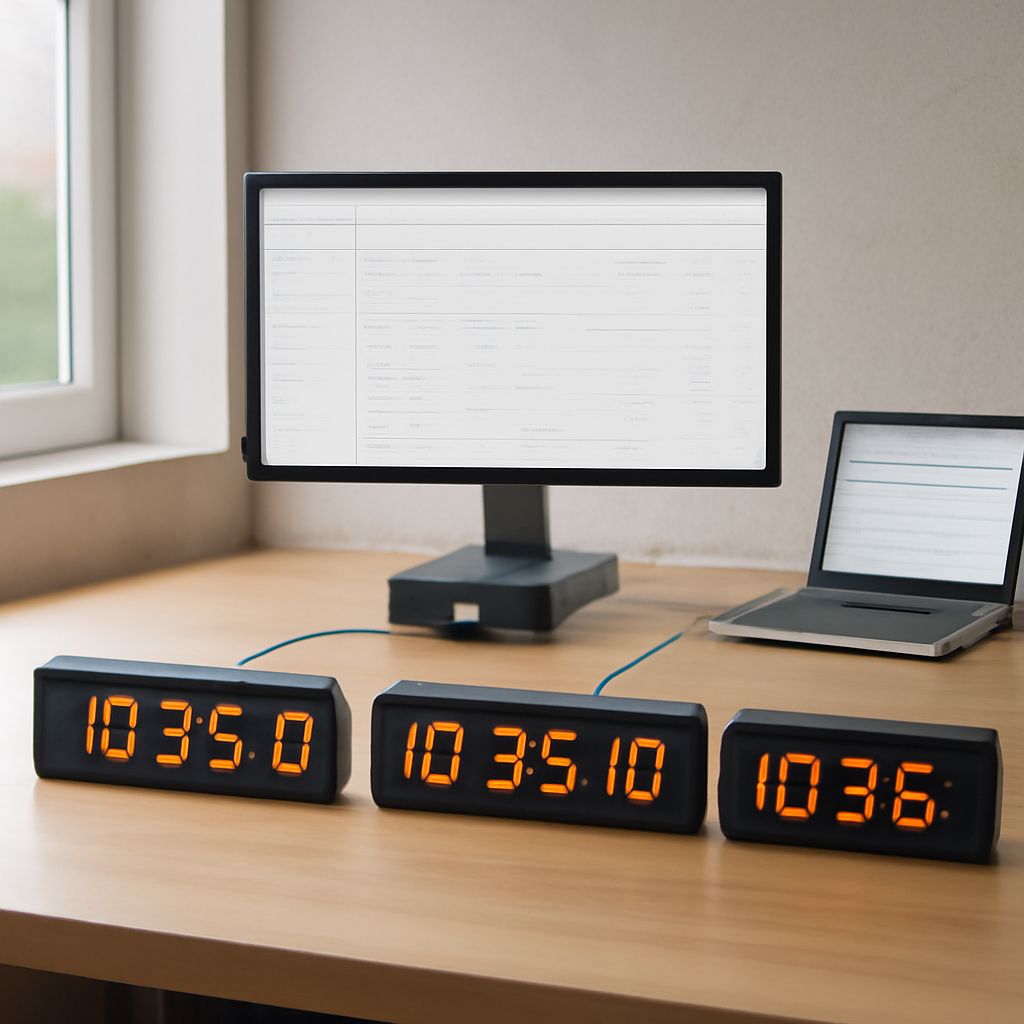
Time sync keeps your computer’s system clock aligned with a reliable network time source. It helps timestamps, logins, scheduled tasks, file transfers, and security checks work as expected.
You can usually sync computer time with the operating system’s built-in time service. First separate the clock’s actual time from its time-zone display: synchronization sets the clock, while the time zone determines how that time appears locally.
What Time Sync Changes—and What Time Zones Do Not
Most computers use the Network Time Protocol (NTP) to compare the system clock with a time server. The server may be operated by your organization, your internet provider, or a public time service. The computer then makes small corrections automatically at regular intervals.
Automatic synchronization changes the underlying clock, commonly based on UTC. Your time zone applies an offset to display that moment as local time and can also account for daylight saving changes. Selecting a different time zone does not synchronize a slow or fast clock.
Use the correct time zone when the displayed hour is wrong but the minutes and seconds remain accurate. Use synchronization when the clock itself gains or loses time, or when it differs from other trusted devices.
Sync Your Computer’s Time With Built-In System Settings
Built-in controls are sufficient for most individual computers. They use the operating system’s time service, contact a configured network source, and correct the clock without requiring a separate application.
- Check the time zone. Open your date and time settings and select the region where the computer is located. Enable automatic daylight saving adjustments if your region uses them.
- Enable automatic time. Turn on the setting labeled Set time automatically, Set date and time automatically, or a similar option.
- Run a manual sync. Select Sync now or the equivalent button. This immediately asks the time service to contact its configured source instead of waiting for the next scheduled update.
- Check the result. Confirm that the settings show a recent successful synchronization and compare the clock with a trusted reference.
On Windows, these controls are under Settings and then Time & language. On macOS, open System Settings, General, and Date & Time. Linux distributions vary, but tools such as timedatectl, chrony, or systemd-timesyncd commonly manage the service.
Fix a Clock That Will Not Stay Synchronized
Follow this sequence so you can isolate the failure instead of changing several settings at once.
- Test connectivity. Make sure the computer has network access and can resolve the time server’s name. A firewall, VPN, captive portal, or restricted network may block NTP traffic, commonly through UDP port 123.
- Check the time service. Confirm that the operating system’s time service is running and set to start automatically. On managed computers, a company policy or domain controller may control this setting.
- Verify the time zone. If synchronization succeeds but the displayed hour is wrong, correct the time zone rather than forcing another clock update.
- Correct a badly wrong clock. Set the date and time approximately by hand, then run synchronization again. A large error can prevent authentication, certificate checks, or the time protocol from working correctly.
- Investigate repeated drift. Check for a failing motherboard battery, virtual-machine time conflicts, sleep or hibernation issues, and competing clock utilities. If the clock drifts while the service reports success, try another reliable source and review the service logs.
When Time Sync Software Is Worth Using
Separate time sync software is useful when the built-in service cannot provide enough control. A dedicated tool may let you select several NTP sources, define a preferred order, set the synchronization interval, and choose how aggressively the clock is corrected.
Look for detailed logging and alerts so you can see failed requests, response delays, clock offsets, and source changes. Some tools also support fallback sources, internal time servers, GPS or radio references, and reports that help you prove when a computer synchronized.
Dedicated software becomes more valuable when you need to coordinate multiple computers. Central settings, shared sources, scheduled checks, and a dashboard can keep servers, workstations, network devices, and virtual machines on the same time standard.
For one computer or a small, ordinary setup, built-in synchronization is simpler and usually reliable. Choose separate software when you need centralized control, specialized time sources, frequent checks, audit logs, or consistent settings across many devices.