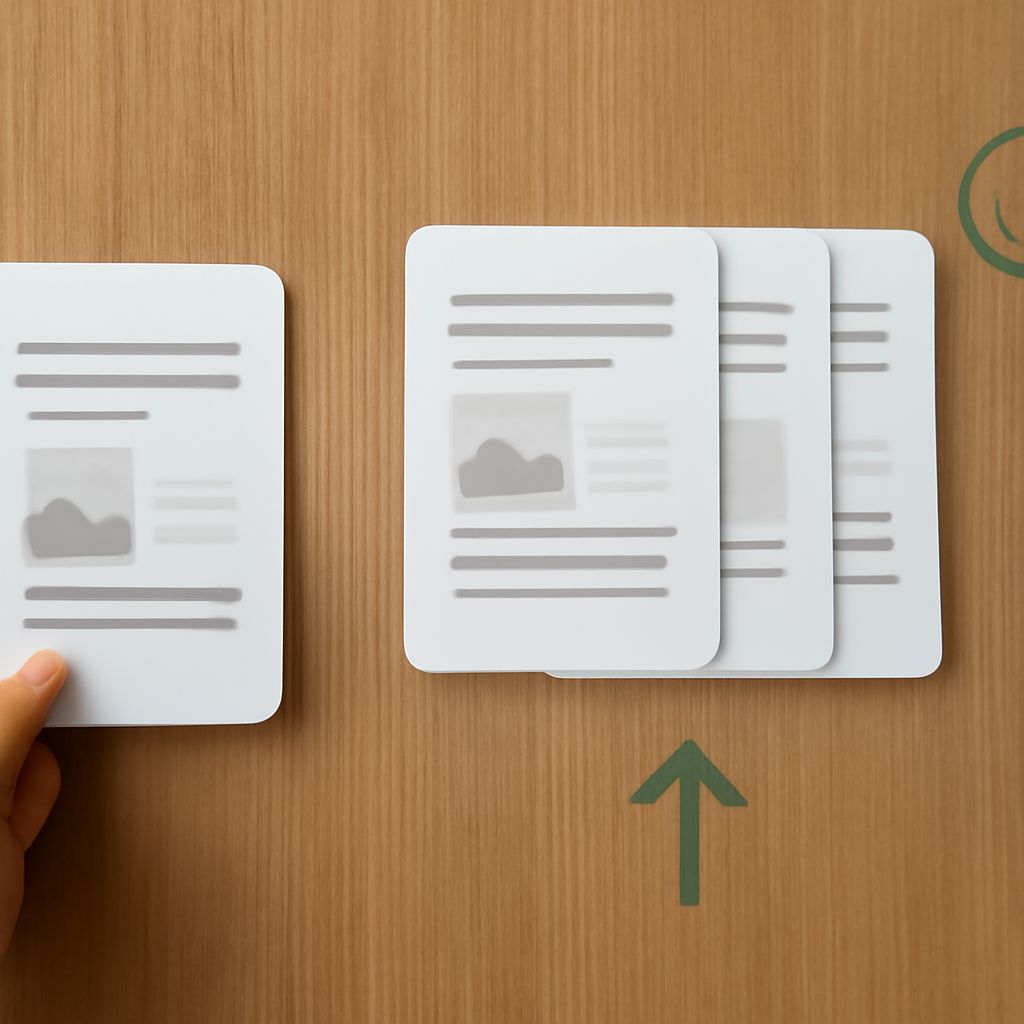
An eight-page PDF can be awkward to share when one person needs only the first three pages. To divide a PDF into smaller documents, select each page range and save it separately. Separating the PDF pages lets you send just the portion each person needs. Adobe Acrobat’s desktop extraction tool lets you keep the source intact while creating the two outputs.
Spli PDF File Names and Page Ranges
For this example, name the first output spli PDF and the second spit PDF, adding the .pdf extension when you save. This PDF division produces two files: the first contains source pages 1–3; the second contains pages 4–8. Splitting the original PDF into smaller files takes two selections here, one for each range. Distinct names keep the two results easy to identify when you reopen them.
Before you split PDF pages, open the source and inspect its thumbnails. A printed page number may differ from the page’s position in the file: a cover might be the first PDF page even though the first numbered page is marked “1” later. Identify the pages by their visible contents as well as their labels. In this example, the ranges mean the first three and the following five pages of an eight-page file.
Extract the First Range
The following steps use the desktop version of Adobe Acrobat and its Organize pages tool. Adobe’s extraction instructions describe the controls and the two extraction options.
- Open the PDF in Acrobat. Select All tools > Organize pages to display page thumbnails.
- Use the PAGES SELECTED field to select pages 1–3. Confirm that the three intended thumbnails are selected.
- Select Extract pages in the left pane. Leave Delete pages after extracting unchecked so the source retains its pages.
- Leave Extract pages as separate files unchecked as well. Select Extract to create one new document containing the selected pages.
- Save the new document using the first name in a folder you can find again. Return to the original document for the second range.
If you select the option to extract pages as separate files, each selected page becomes its own PDF. That way of separating a PDF into individual files is useful for handouts, but it is not the setting for a three-page file followed by a five-page file.
Save and Check the Second File
In the original document, select pages 4 through 8 in the thumbnail view. Choose Extract pages, leave both options unchecked, and select Extract. Save the resulting five-page document using the second name in the same folder. You have now separated the PDF into two documents without removing pages from the source.
Open each output separately. The first should have three pages, in the same order as the source; the second should have five. Compare the first and last page of each file with the source, then scan the pages in between for missing or unexpected content. If the order or selection is wrong, return to the source and extract the correct range again under a new name.
You can also split PDF documents into individual pages by selecting a single thumbnail. If you need several individual files, select the pages and use Extract pages as separate files. If you later need to splice PDF pages from different documents into one file, use a combine function instead; extraction produces smaller documents from the source. Joining pages from PDFs is a separate operation that creates a combined document.
Keep These Settings Handy
- Ranges: select pages 1–3, then 4–8 in the original document.
- Options: leave deletion and separate-file extraction unchecked for two multi-page outputs.
- Save: give each result a distinct name and location.
- Verify: reopen both files and check their page counts, content, and order against the source.