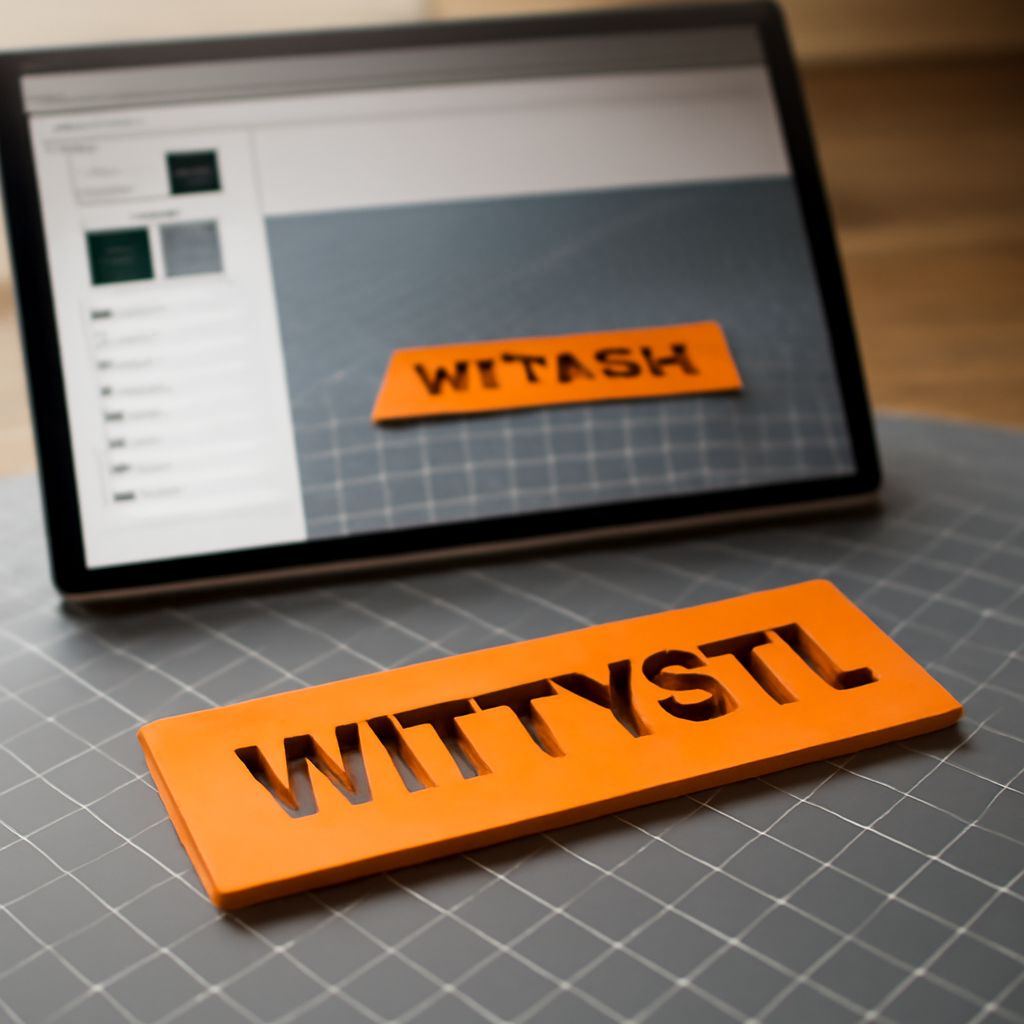
Type a short phrase into a 3D lettering generator, choose a font and depth effect, then export the result as an image. You can make letters look three-dimensional with font choices, color, and shadow in just a few adjustments. Before downloading, decide where the graphic will appear so you can check its size and background.
3D Letters Font Choices and Depth
Start with a bold, simple typeface. Thick strokes leave room for a visible side or shadow, while narrow details can disappear when the image is small. A 3D letters font with wide, open shapes is a practical choice for a thumbnail or poster title. Short words are easier to fit and read than a full sentence.
For a concrete example, open Made Good Designs’ 3D Text Generator. Enter your phrase in the text field and pick a preset or one of the available fonts. The preview lets you see how the letters work together before you download anything. Check spelling and punctuation now; changing a word after exporting an image usually means returning to the editor and exporting again.
Use the Depth control to make the visible sides thicker, and adjust Angle to change their direction. Start modestly: too much depth can make neighboring letters merge. If a tool offers only a shadow rather than extrusion, move the shadow slightly away from the face to create a sense of depth. A shadow can suggest volume even though the final picture remains flat.
Set Colors and Export
Choose a face color that stands out from the background. A darker side color can make the front of each letter easier to distinguish; an outline or drop shadow can help on a busy photograph. Check the preview at roughly the size readers will see it. If you cannot read the words at thumbnail size, reduce the effect or choose a simpler typeface.
The example 3D font generator offers face and side colors, outlines, and a transparent background option. Select transparency if you plan to place the lettering over another image. Download the PNG, then open it in your intended app and place it against the actual background. A transparent preview against a checkerboard does not tell you how the text will look over a dark photograph.
Inspect the exported image for clipped shadows, spelling, jagged edges, and enough space around the letters. If it looks soft at the intended size, export a larger version if the 3D font maker offers one. Avoid stretching a small image far beyond its original dimensions. Keep the settings or project available so you can regenerate the graphic later.
Know What You Are Downloading
A 3D font generator may produce a PNG image, a font file, or a three-dimensional model, depending on the service. Read the export options before building a design. These outputs do different jobs:
- PNG or JPEG image: The lettering is a finished picture. You can place and resize it, but you cannot normally change its words as text. PNG can preserve transparency; JPEG cannot.
- Installable font: A font file lets you type different words in compatible apps. Its letters may be drawn to look dimensional, but installing it does not automatically create a movable 3D object.
- 3D model: A compatible model file can be opened in a 3D application for tasks such as changing the view or lighting. Editing the original wording depends on the file and software; a converted mesh may need to be rebuilt.
For a poster, slide, or social graphic, choose a PNG when you need the lettering over another background. Choose an installable typeface when you need to keep typing and editing words. Choose a supported model format when you need to work with the object in a 3D application.