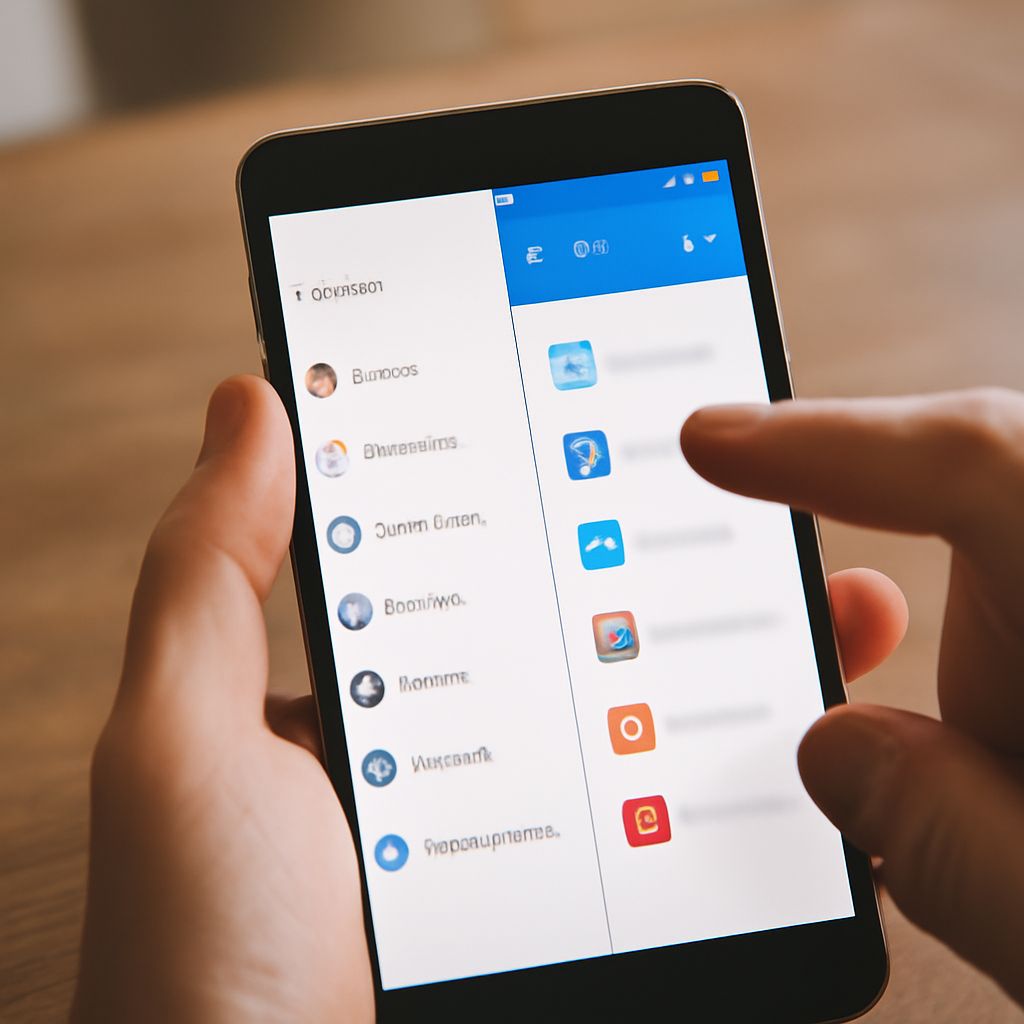
Touch and hold an app icon, then choose Uninstall if it appears. Confirm the prompt to delete the app from your Android phone. You can also remove unwanted Android apps through Settings when the icon menu does not offer that choice.
Before you uninstall, save anything you need that exists only inside the app. Menu names vary between phone makers and Android versions, so check the label before deleting an app on your Android phone.
Remove Apps From an Android Phone Using the Icon
On many phones, the quickest answer to how to delete apps on an Android phone starts on the Home screen or in the app drawer:
- Find the app you no longer want. Swipe up from the Home screen to open the app drawer if needed.
- Touch and hold its icon until a menu appears. You may see an App info icon instead of a written label.
- Tap Uninstall, or open App info and tap Uninstall there.
- Confirm when prompted.
If you see Remove on the Home screen, read the label carefully. That action can remove only the shortcut from the Home screen, leaving the app installed in the drawer. Google explains that Uninstall removes the app from the device. To clear an Android phone of an app rather than just its shortcut, choose Uninstall.
Uninstall through Settings
Settings gives you a list when you cannot find the icon and want to uninstall an app from your Android phone. Here is another way to remove apps from an Android phone:
- Open Settings and tap Apps.
- Tap See all apps or All apps, if your phone shows that option.
- Select the app, tap Uninstall, and confirm.
The exact path can differ. On a Samsung phone, for example, you may see the app list directly after tapping Apps. The app’s information page also lets you inspect its storage and permissions before you decide to delete it from your Android phone.
You can use the Play Store too: tap your profile picture, then Manage apps & device > Manage, select an app, and choose Uninstall. This route is handy for reviewing several installed apps. If you need to learn how to delete apps on an Android phone for a family member, show them the confirmation screen so they can check the app name first.
What happens to your data?
Uninstalling generally removes the app’s locally stored data along with the app. That might include downloads, drafts, or settings that have not been synced. Before deleting the app from your Android device, open it and back up or export anything important. Data saved to an online account may remain there; sign in again after reinstalling to see what was synced.
Deleting an Android app from your phone does not automatically cancel its subscription. For a Google Play subscription, open Play Store, tap your profile picture, and go to Payments & subscriptions > Subscriptions to review or cancel it. Google’s instructions cover the cancellation steps. A subscription purchased elsewhere must be managed with that provider.
If Uninstall is unavailable
Some apps that came with your phone are part of the system and cannot be uninstalled. On supported phones, open Settings > Apps, select the app, and tap Disable. This turns it off and may hide it from your app list, but it remains on the device. You can return to the same page and tap Enable if you need it again. Some essential apps cannot be disabled either.
Knowing how to delete apps on an Android phone also means recognizing a restriction: if Uninstall or Disable is grayed out, the app may be required or controlled by a work or school administrator. Check whether the phone is managed and ask its administrator before changing settings. If you only removed the shortcut and the app still appears in the drawer, open its App info page and choose Uninstall instead.