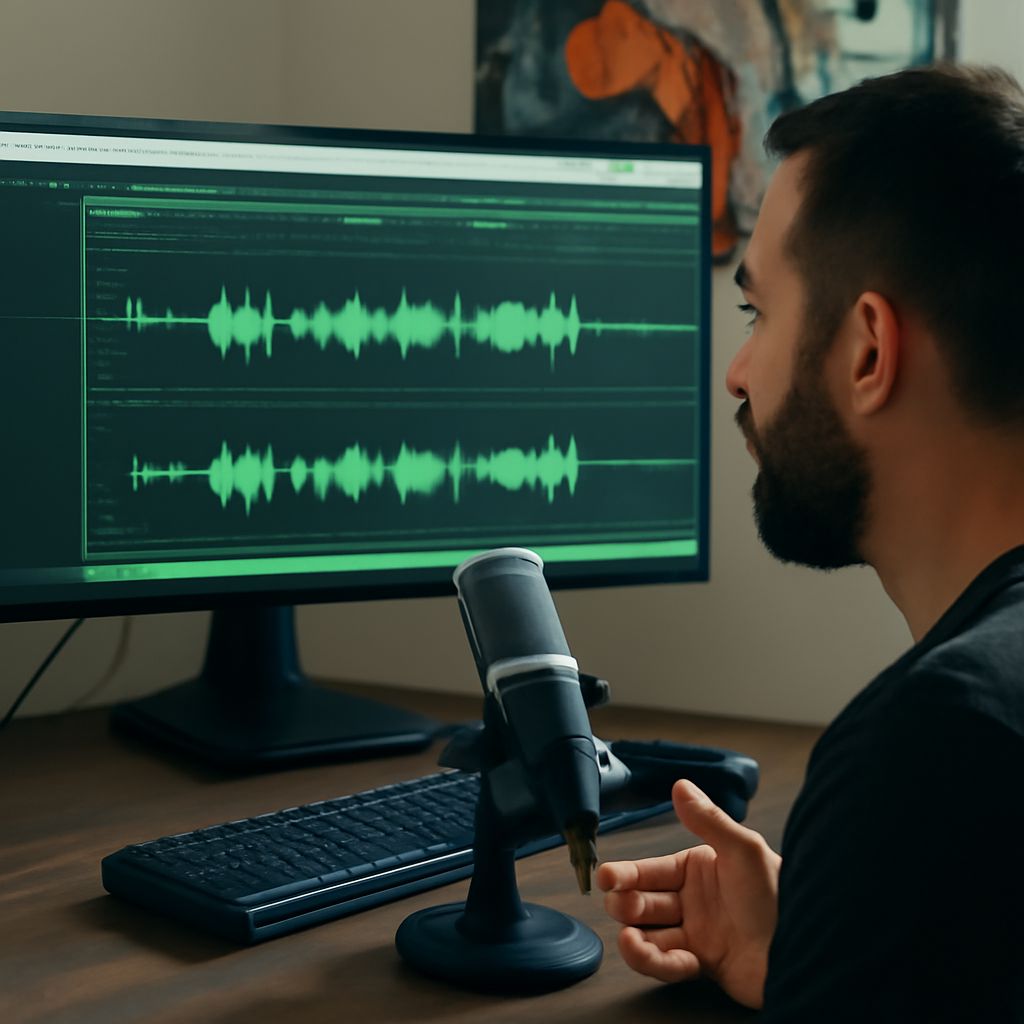
A quick clip of one window calls for a different setup than a tutorial with your face, voice, and desktop audio. Choose screen recording software for your computer by the sources you need and how much editing comes afterward. A free screen recorder for your computer may already be installed; a more flexible free app can combine several sources.
Before recording, close private tabs and silence notifications. Choose a single window if you want to limit what appears, or the whole desktop if the demonstration moves between apps. Make a short test first: a perfect explanation is less helpful when the microphone was muted.
Free Computer Screen Recorder Options
Windows Snipping Tool is convenient for a short screen clip. Select Record, choose an area, and start. Microsoft also offers an Edit in Clipchamp option for adding audio or captions afterward. This free screen recorder built into Windows is convenient on that computer, but it is not a cross-platform workflow.
Mac Screenshot and QuickTime Player provide built-in ways to record the screen. The Screenshot toolbar can capture a selected portion, and its Options menu lets you choose a microphone. Apple says the option to include system audio is available in macOS 27 or later. Check your macOS version and test the sound you need. These tools are a good fit for a simple clip; choose an editor if you need a more involved timeline.
OBS Studio is free computer screen recording software for Windows, macOS, and Linux. This free computer screen recorder can handle more than one source at a time. It can combine a screen or window, a camera, and audio sources in one scene. That flexibility takes a little setup, and OBS is primarily a recorder rather than a timeline editor. Bring the finished file into a video editor if you need to cut and rearrange sections.
Clipchamp offers screen and camera recording plus editing. Microsoft’s recording guide says its screen-recording audio is available when sharing a browser tab, with audio sharing enabled. Check current plan and export options for your account before relying on a particular feature. For a short narrated clip that needs trimming, this may be the best computer screen recorder for your workflow.
Record a short tutorial with OBS
This example uses OBS Studio, a free screen recorder for Windows computers. Download it from the official OBS site and run the setup wizard. On a Mac or Linux computer, the source names and permissions can differ.
- In OBS, create a scene if needed. In Sources, click + and select Display Capture for the full desktop or Window Capture for one app. Choose the intended display or window and check the preview.
- To include your face, add a Video Capture Device, select your camera, and resize its image in the preview. Keep it away from the controls you need to show.
- Speak and play a sample sound while watching the Audio Mixer meters. Check the microphone and desktop audio sources in Settings > Audio; unmute or select the correct device if a meter does not move.
- Under Settings > Output > Recording, check the recording path and format. Click Start Recording, demonstrate a few seconds, then click Stop Recording. Open the saved file and listen to both audio sources.
- Once the test works, record the full lesson. If you recorded in MKV and need MP4 for sharing, use File > Remux Recordings in OBS and select the file. Play the resulting MP4 before sending it.
The OBS quick-start guide covers sources and the mixer. On macOS, screen and audio capture require the appropriate permissions; OBS documents audio capture with its macOS source on macOS 13 and later. A meter moving is a good sign, but playback is the final sound check.
Pick the workflow
Choose built-in computer screen recording software for a quick, simple capture. Pick OBS when you need to combine a window, camera, and sound, or Clipchamp when editing is central to the job. Whichever free recorder you use on your computer, record a short sample and confirm the picture, audio, and saved file before committing to the full take.