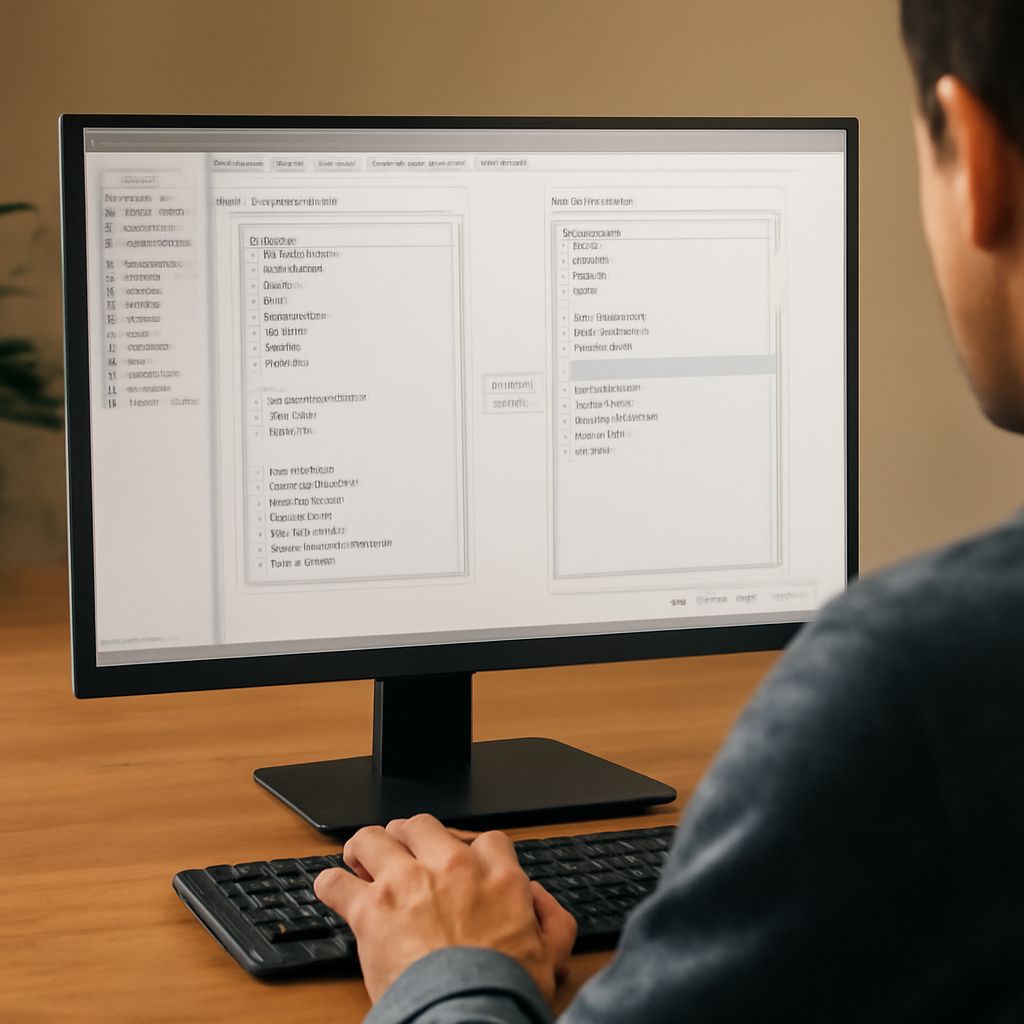
Streamlining your text editing tasks can significantly boost productivity. Mastering the find and replace keyboard shortcut is essential for anyone looking to edit documents efficiently. Whether you’re using Word, Excel, or any other text editor, understanding how these shortcuts work will save you time and effort.
Understanding Find and Replace
The find and replace function is a powerful tool that allows you to search for specific text in a document and replace it with something else. This feature is especially useful when editing large documents with repetitive text. It can be used to correct errors, update outdated terms, or make bulk changes across your files.
Keyboard Shortcuts for Find and Replace
Keyboard shortcuts can drastically cut down the time spent on editing. Here are some common shortcuts:
- Windows: Use Ctrl + H to open the find and replace dialog.
- Mac: Use Command + Shift + H for the same function.
These shortcuts provide quick access to the find and replace functionality, allowing you to initiate the process without navigating through menus.
Using Commands Effectively
The find and replace command is versatile, enabling you to customize your search. You can search for exact words, phrases, or even special characters. Most programs offer options to match case, find whole words only, or use wildcards for more complex searches.
In applications like Microsoft Word, you can access advanced options to refine your search further. This includes searching by font style, highlighting, or specific formatting.
Practical Tips and Tricks
To maximize efficiency, consider these practical tips:
- Preview Changes: Always preview changes before applying them to avoid unintentional replacements.
- Use Wildcards: Utilize wildcards for complex patterns. For instance, searching for “b*k” might find “book” or “back.”
- Batch Processing: In software that supports it, apply find and replace in batch mode across multiple documents to save even more time.
By implementing these tricks, you can harness the full potential of the find and replace feature, making your editing process faster and more precise.