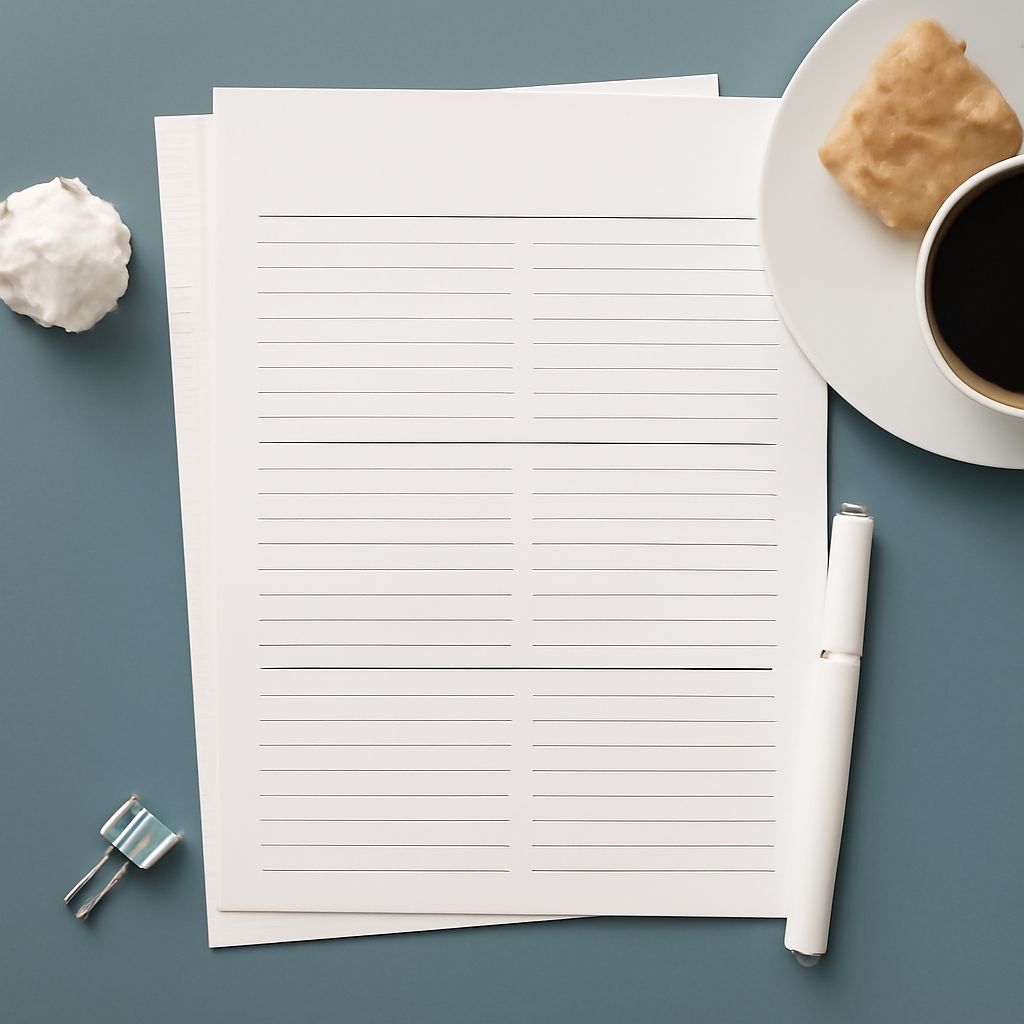
A planner with seven tiny boxes can leave you squeezing appointments into the margins. Choose a printable weekly PDF planner with enough room for the way you actually plan: broad daily blocks for priorities, an hourly weekly schedule in PDF for timed commitments, or a full page for a busy day. Then print a test copy before making a stack.
Weekly Hourly Planner PDF or Open Blocks?
A weekly planner PDF with one open block per day works well when you track a few priorities, deadlines, and reminders. You can write tasks wherever they fit and see the entire week at a glance. Look for separate weekend space if you plan on Saturday and Sunday, and check whether the week begins on your preferred day.
A weekly hourly planner PDF divides each day into time slots. It makes gaps and overlapping appointments easier to spot, especially if meetings, classes, or client calls shape your week. Check that the printed hours include your early mornings or evenings. Half-hour rows give more precision, but they also leave less space for notes on a single sheet.
A daily schedule template PDF gives one day more room for appointments, a task list, and notes. Choose this format for a packed day or detailed time blocking. The tradeoff is more paper and less of the week visible at once. You can combine a weekly overview with a separate daily schedule in PDF for the busiest days.
Find a Template or Make Your Own
To find a weekly planner template PDF, look for a printable file from a source you trust. Preview the pages before downloading: check the page size, orientation, dates, writing space, and whether the template is blank or already dated. Read the provider’s terms if you plan to share copies beyond personal use. An undated weekly planning template in PDF can be printed again whenever you need it.
You can also build a simple version in Word or a spreadsheet. In Word, set the page to Letter size and choose landscape if seven columns need more width. Insert a table with seven columns for the days and enough rows for your appointments or notes. Add day names and leave the cells blank for handwriting. For timed planning, add a narrow time column and label the rows with the hours you need.
Save the editable document first so you can change it later. In Word for Windows, use File > Save As or Save a Copy, choose PDF as the file type, and save. Open the PDF to confirm that the table fits on the intended pages. Microsoft’s PDF instructions cover other Office versions too.
Fill and Print Your Planner
Print a blank copy and write in it, or type into a fillable PDF if the file has form fields. A PDF without fields may require an annotation tool for typed notes. Keep a blank master and save a separate copy for each week if you fill it digitally.
In the print dialog, select US Letter (8.5 × 11 inches) and the orientation shown in the preview. Use actual size when the template is designed for that paper; if the edges are clipped, try Fit and check that the writing areas remain large enough. Print one page first. Inspect the outer borders, labels, and contrast, then use the same settings for additional copies.
Add fixed appointments first, including travel or preparation time. Next, put the week’s most important tasks into open spaces and leave some room for changes. A short review at the end of the day helps you move unfinished items intentionally instead of letting them pile up.
For a light schedule, use open weekly blocks. Choose an hourly weekly PDF planner when appointments need time slots, and a daily page when one day’s details need the extra room.