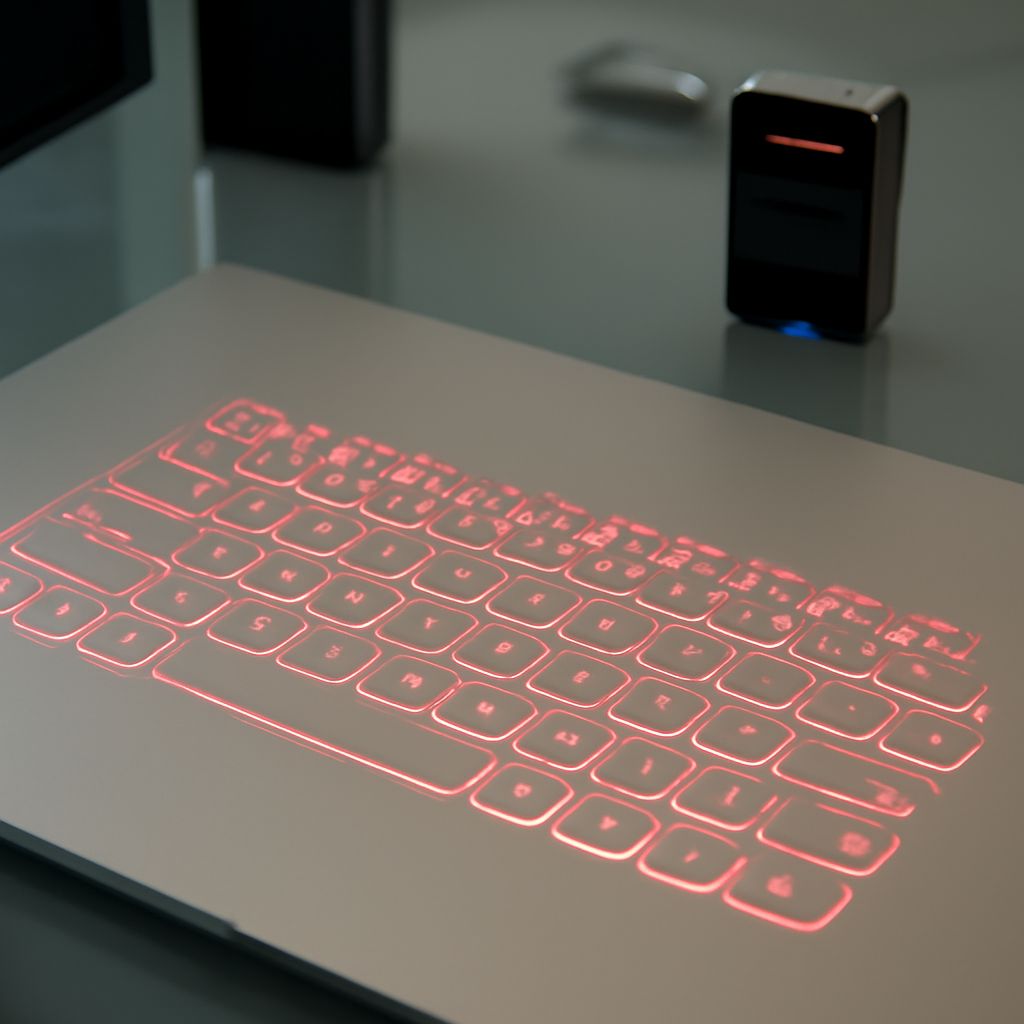
If your keyboard stops working, an on-screen keyboard can put letters directly into your document. If you need an unfamiliar alphabet for a short message, a browser-based option can give you a place to type and copy the result.
Both let you select visible keys with a mouse or touchscreen. The system tool works across applications; a browser tool usually puts text in its own page first. Here’s how to choose and get typing.
Keyboard virtual or physical: which fits your task?
You can keep your keyboard virtual when a physical key is broken or a pointing device is easier to use. The built-in option is also handy for entering text in several apps without moving it between windows. You can click Shift and other modifier keys on the displayed layout, then select a letter or symbol.
A browser keyboard can be convenient when you want to try a different alphabet for a short passage. It may offer its own layout selector and text box. Check whether the page offers the characters you need, and test a short phrase before composing a long one. Keep passwords and other sensitive information out of third-party typing pages: you may not know how they handle entered text.
Open the built-in keyboard
Windows 11: Select Start > Settings > Accessibility > Keyboard, then turn on On-Screen Keyboard. Click in your document or other text field, then click the displayed keys. You can drag the keyboard to a convenient position. Close its window when you are finished. At the sign-in screen, select the Accessibility button in the lower-right corner and choose On-Screen Keyboard.
Mac: Open Apple menu > System Settings > Accessibility > Keyboard and turn on Accessibility Keyboard. Click a text field, then use the displayed keys. You can also open Keyboard Viewer from the input menu in the menu bar. If the menu is missing, go to System Settings > Keyboard, select Edit under Text Input, and enable Show Input menu in menu bar. Apple’s instructions explain how to display and use the viewer.
A mouse is enough for these steps; you don’t need a touchscreen. If the Windows keyboard shows only navigation keys, select General to restore the full layout. Microsoft’s guide covers the available layouts and input options.
Change the language
In Windows, select the input-language indicator on the taskbar and choose an installed layout. To add one, open Settings > Time & language > Language & region, choose a language’s options, and add a keyboard under Keyboards. If the language is missing, add it first. Switching the input layout changes the keys used for typing; it does not have to change the Windows display language.
On a Mac, open System Settings > Keyboard, select Edit under Text Input, and add an input source. Then choose it from the menu bar’s input menu. The displayed keys change with the selected source. Try a few characters in a blank document and switch back when you’re done.
Type on a page and move the text
To use a virtual keyboard online, open a reputable typing page, choose the language or layout, and select its text area. Click the on-page keys to build your text. An online on-screen keyboard may include buttons to copy or clear the text; their labels and behavior depend on the site.
When you are ready, select the text in the page’s box and use its Copy button, if provided, or right-click and choose Copy. Open your destination document, click where the text belongs, then right-click and choose Paste. Check accents, spacing, and punctuation after the move. If a web keyboard has no copy button, ordinary text selection and the context menu may still work.
If letters appear in the wrong alphabet, check the active input language or the page’s selected layout and switch it before typing again. If nothing appears, click the destination text field first; a blinking insertion point shows where the next character will go. If a page-based keyboard works but your document stays empty, copy the finished text from the page and paste it into the document.