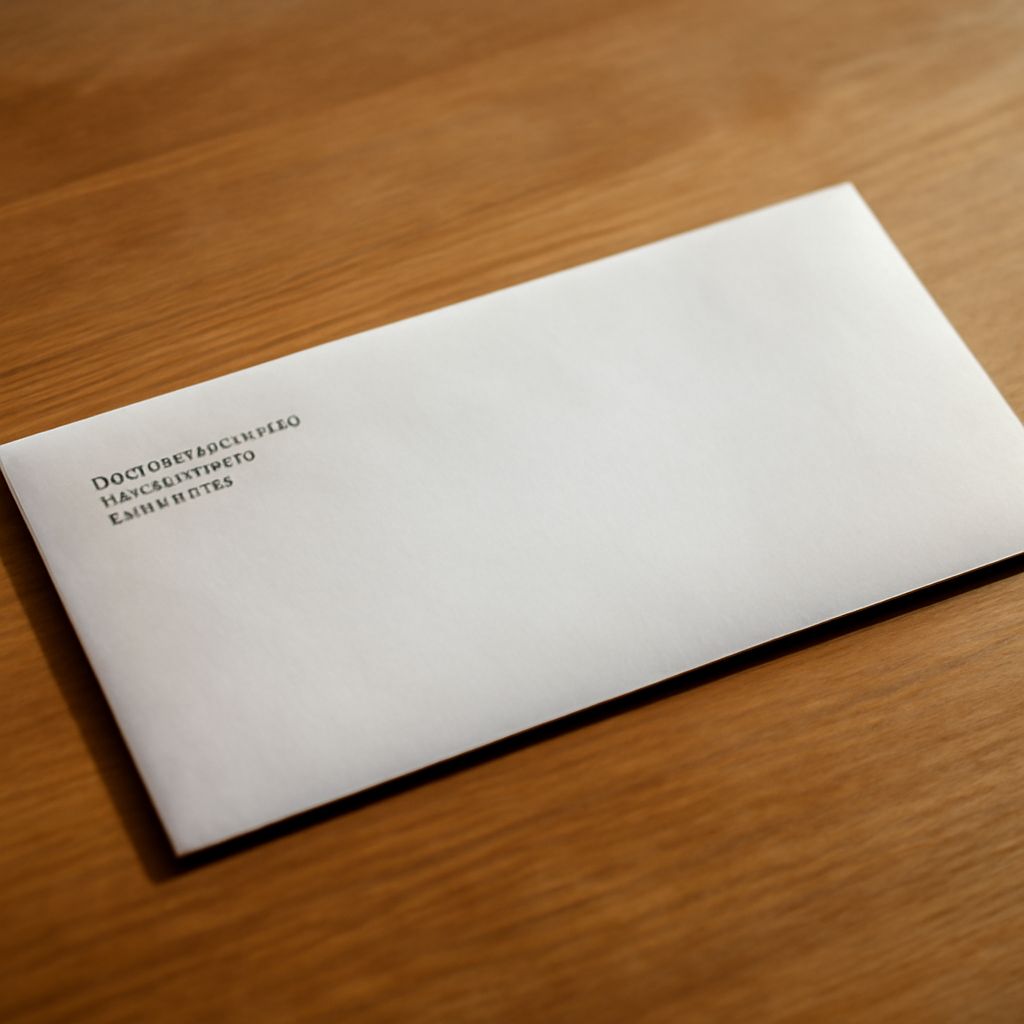
Printing addresses on envelopes can be a breeze with the right tools. Using an A7 envelope template can streamline this process, helping you achieve professional-looking results without the fuss. Follow these steps to efficiently set up your template and print addresses seamlessly.
Understanding A7 Envelope Templates
An A7 envelope measures 5.25 x 7.25 inches, a popular size for invitations and cards. Templates for these envelopes allow you to position addresses precisely, ensuring that everything fits correctly and looks neat. These templates are often compatible with software like Microsoft Word or Adobe Illustrator, making them easy to use and customize.
Setting Up Your Template
To start, download an A7 envelope template compatible with your preferred software. Open the template and personalize it by adding your return address in the designated area. Ensure the template matches your envelope size to avoid misalignment during printing. Adjust fonts and styles to match the tone of your mailing, ensuring readability and aesthetic appeal.
Before printing, always check the print settings. Select the correct paper size and adjust the printer’s settings to handle envelope printing. This step helps prevent paper jams and misprints, ensuring each envelope prints perfectly.
How to Print Addresses on Envelopes
Once your template setup is complete, you’re ready to print. Here’s a step-by-step guide on how to print addresses on envelopes:
- Load the Envelopes: Place your A7 envelopes into the printer tray. Make sure they are positioned correctly, as per your printer’s guidelines.
- Open the Template: Access your customized A7 envelope template in your software.
- Enter Recipient Details: Type in the recipient’s address where indicated. Double-check for errors to avoid reprints.
- Print a Test Sheet: It’s wise to print a test sheet on regular paper. This step ensures everything aligns perfectly and can save resources.
- Adjust If Needed: If the test print isn’t aligned, adjust the template settings. Recheck the positioning and print settings.
- Final Print: Once satisfied with the alignment, proceed to print the addresses on your envelopes.
By using an A7 envelope template and following these steps, you can easily manage envelope printing, ensuring each envelope is ready for mailing.